

Quick Tide Check
WaveTrader 1.2.3 supports iPhone Duo. Closed, it's the app you know. Open it and you get the list and the chart side by side, or one chart across the whole screen. Half open, the app arranges itself around the fold. It's on the App Store now.
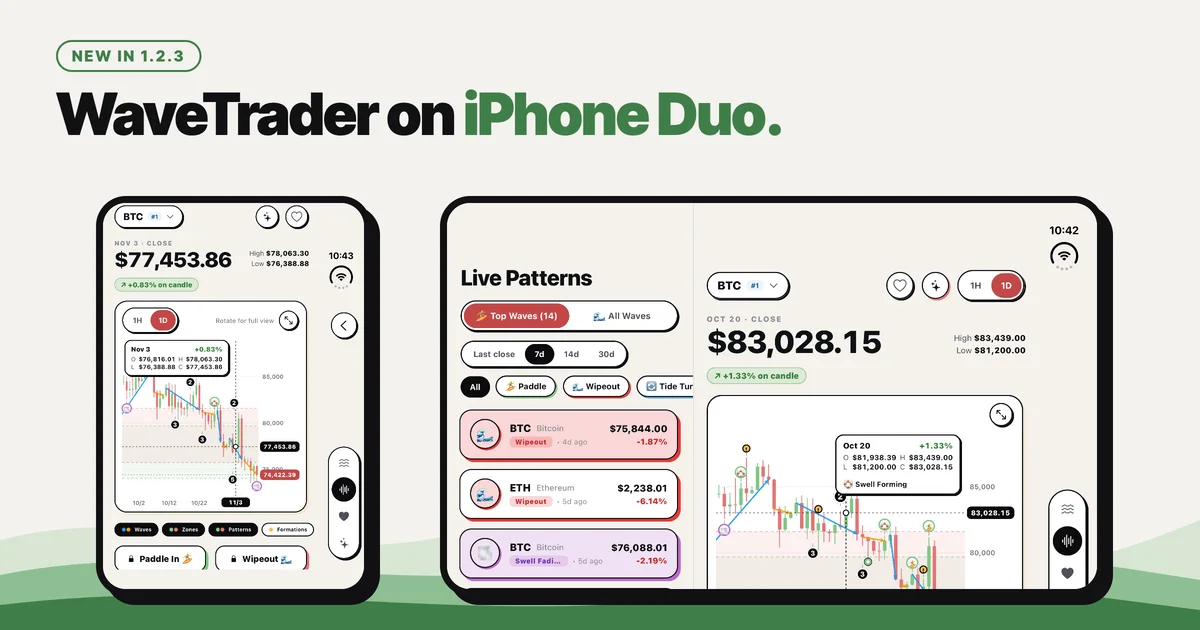
A phone that opens into a bigger screen is a gift to anyone who reads charts. It's also an easy thing to waste, because the lazy answer is to stretch the phone app until it fills the space. For WaveTrader on iPhone Duo we went the other way and gave each way of holding the phone its own layout.
There are four of them. Here's what you'll see in each one, and what happens when you fold the phone halfway through reading the swell.
🔑 Key Takeaways
- It's live. iPhone Duo support is in version 1.2.3, on the App Store now.
- Open means side by side. Tap a pattern or a favorite and its chart opens next to the list.
- Half open works too. Hold it like a book for one thing per half, or stand it on a table with the chart on top and the controls below.
- Folding doesn't lose your place. Close the phone and the chart or Kai chat you had open is still there.
- Other iPhones look the same. They get a few fixes, and light is now the default theme.
Closed: WaveTrader on iPhone Duo's outside screen
With the phone shut, you get the app from the 1.2.0 redesign, one screen at a time. The Market Swell card is on Home, Live Patterns has its filters, and the chart has its Paddle Zone and Wipeout Zone bands.
One thing moved. The four tabs now run down the edge of the screen in a vertical strip, with a Back button above them. The strip stays in the same place on every screen, so your thumb learns it once. Favorite and Ask Kai stay at the top of the chart, where they were.
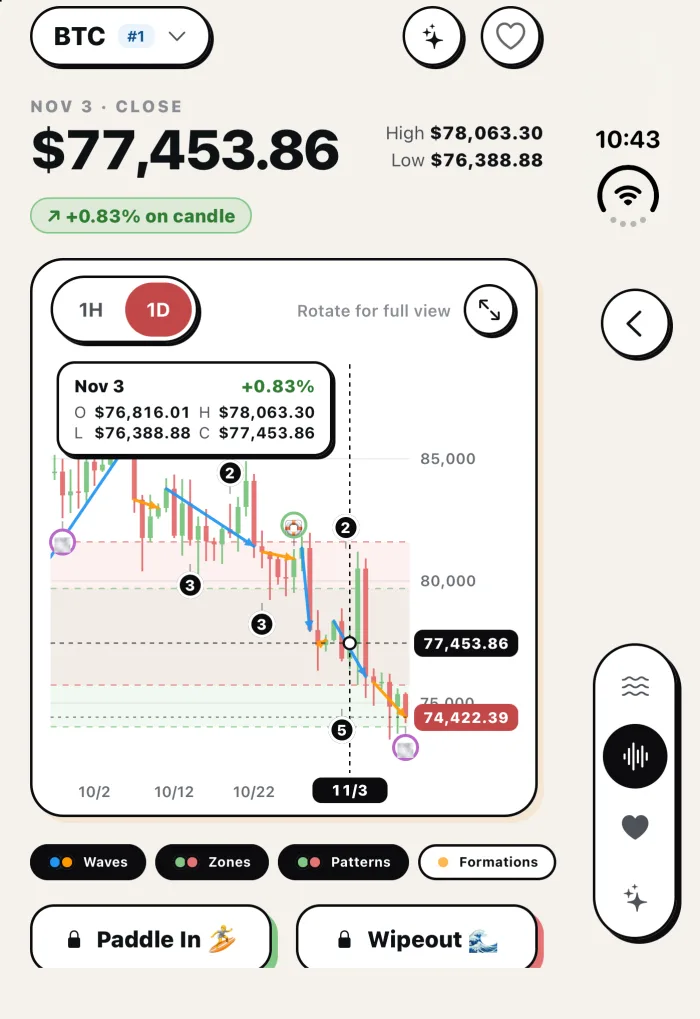
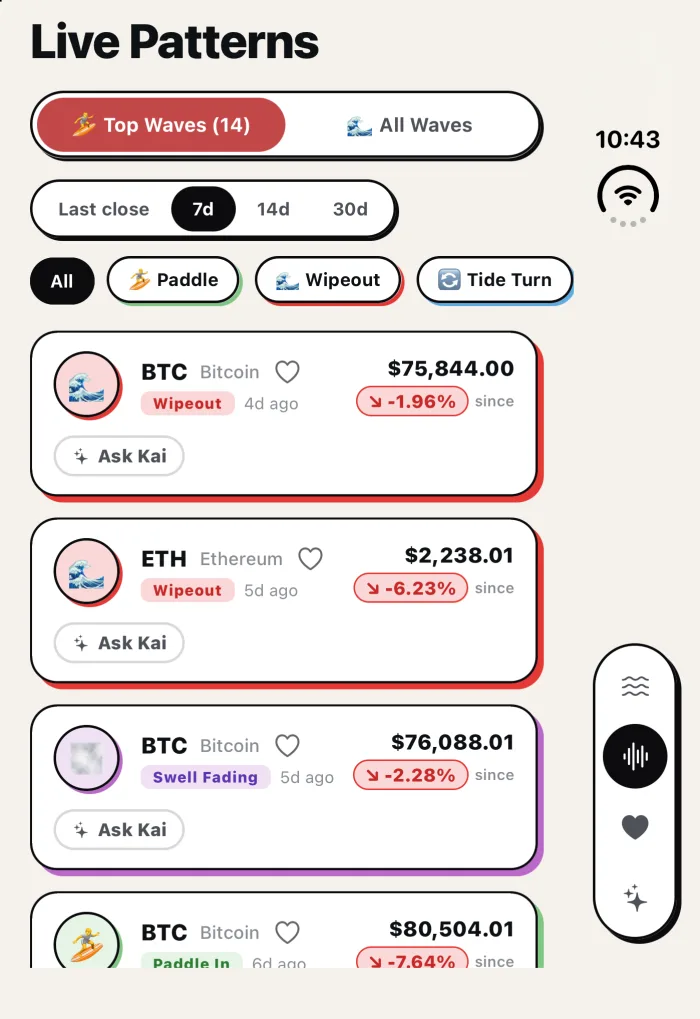
Image Source: WaveTrader in the iPhone Duo simulator, with test data on a free account. That's why Paddle In and Wipeout show a lock.
Open flat: the list and the chart, side by side
Open the phone and the app stops making you choose. On a regular iPhone, checking five signals means tapping into a chart, going back, and tapping into the next one, five times over. On the open Duo the list stays on the left and each chart you tap opens on the right.
That works in Live Patterns and in Favorites. If you're still learning what a Paddle or a Tide Turn row is telling you, our guide to understanding break signals pairs well with flicking through a few of them this way.
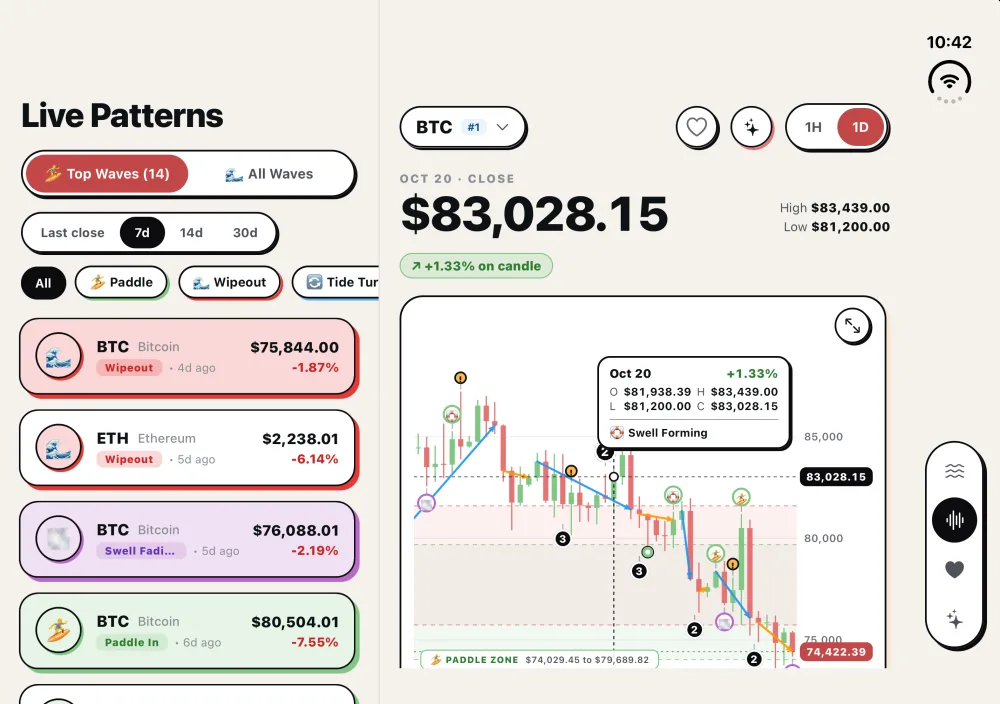 Image Source: WaveTrader in the iPhone Duo simulator, with test data.
Kai sits next to the chart
Tap Ask Kai on a chart and Kai, our AI surf analyst, opens beside it. You can read the answer and check it against the candles without switching screens. The Kai tab splits the same way, with your past chats on one side and the conversation on the other.
Home uses the room as well. Market Swell and Quick Actions take one column and Big Waves takes the other, so the longest Up Swells are on screen as soon as you open the app.
Or give the chart the whole screen
Sometimes you want one chart and nothing else. Tap the expand button and the chart covers the list and runs the full width of the open screen. In the capture below that's almost three months of daily BTC candles, with every wave label readable.
Tap a candle and its details open in a panel next to the chart, with open, high, low and close, the patterns on that candle and Surfer Activity. Back, or a tap on the tab you're in, brings the list back.
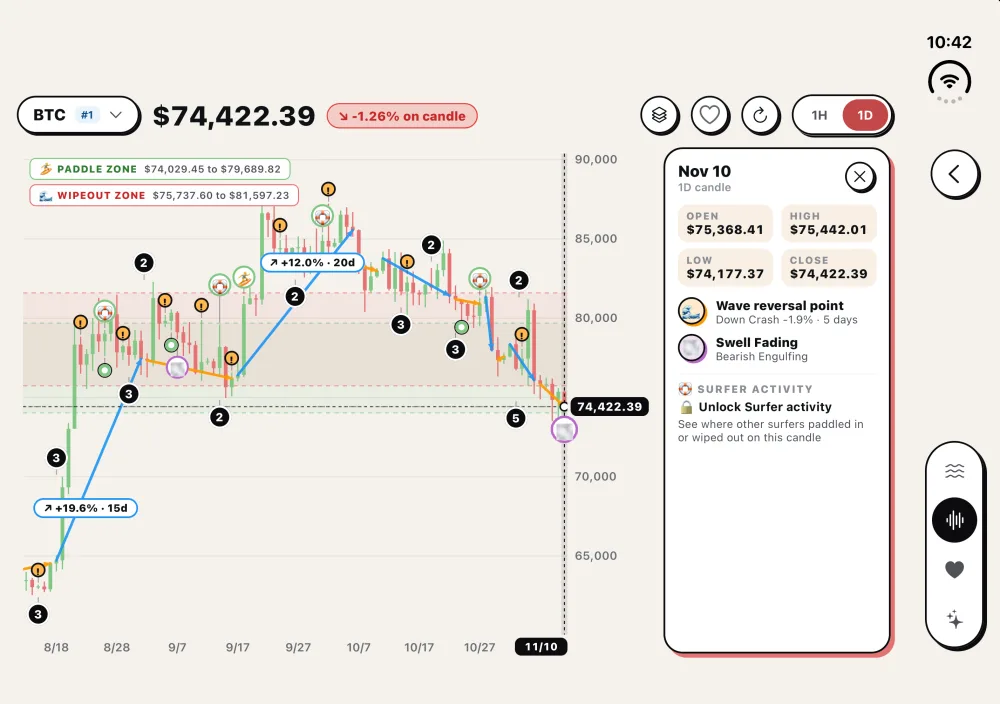 Image Source: WaveTrader in the iPhone Duo simulator, with test data on a free account, so Surfer Activity shows its unlock prompt.
Held like a book: one thing per half
Open the phone partway and hold it with the fold upright, the way you'd hold a paperback. The screen now bends down the middle, and a button sitting on a bend is a button you'll miss.
So the app splits evenly, one half each side of the fold, and puts nothing tappable on the fold itself. The list goes on one half and the chart on the other. With Kai open, it's the chart on one half and Kai on the other. Home gives each half one column.
The full screen chart isn't offered here, because the fold would run straight through your candles. Flatten the phone and the two halves slide into the open layout, with the expand button back in its corner.
On a table: chart up top, controls below
Picture this. Morning coffee, phone half open on the table like a tiny laptop, chart standing up where you can see it. This is the layout we had the most fun with.
The upright half shows the price and the chart and nothing you need to tap. It's there to be read from arm's length. Every control is on the half lying flat, which means the timeframe switch, the layer chips, the open, high, low and close tiles, the signals for that coin, and the Paddle In and Wipeout buttons from Community Trade Marks.
There's one new control for this layout, a scrub strip. Slide your finger along it and the crosshair on the upright chart moves one candle at a time, with a haptic tick for each. You can walk back through a Down Crash candle by candle without your hand ever covering the chart. VoiceOver users can step through candles on the strip too.
Ask Kai from here and the chat takes over the flat half while the chart stays up top.
Fold it mid-session and keep your place
A foldable gets folded all the time. You open it on the couch, close it to walk to the kitchen, and prop it up on the counter. An app that resets on each of those moves would be worse than one with no Duo support at all.
WaveTrader keeps track of the deepest thing you had open. Say you're on the open screen with Live Patterns on the left, the ETH chart on the right and a Kai chat about ETH next to it. Close the phone and the outside screen shows that Kai chat, with the chart and the list a Back tap away.
Kai's conversation is shared across the whole app now, along with the message you were typing, so a half-written question survives the fold. Moving between flat and table mode doesn't reload the chart either. The same chart stays on screen and the controls rearrange under it.
Not on a Duo? What 1.2.3 changes for you
Most of the lineup isn't on a foldable, and that's fine. On every other iPhone the layout is the one you already have. A few things in this update reach you anyway:
- • Light is now the default theme. If you had picked Auto or Dark, WaveTrader keeps your choice.
- • The candle readout on the chart sizes itself to its contents and stays inside the plot.
- • Rotation works again after you go back from the landscape chart.
- • Tapping the Market Swell card on Home opens the chart of the coin the card is showing.
If you haven't tried the chart since the redesign, turning your phone sideways is still the best way to see a whole wave. Our guide to visual trading analytics explains what the lines and zones mean before you paddle out.
How to get it
Update WaveTrader to version 1.2.3 or later from the App Store. The Duo layouts need iOS 27.1 or later, and they come with every plan, the free one included. Kai is still a Big Wave Pro feature whichever way you hold the phone.
If you have a Duo, open Live Patterns with the phone flat and tap down the list. That's the one we'd try first. And if a layout looks off in a way these screens don't show, tell us. See you in the water. 🤙